
Introduction
Cybersecurity is often thought of as a technical problem requiring firewalls, antivirus software, encryption, and security professionals. While those tools are important, many successful cyberattacks do not begin by attacking technology at all.
Instead, attackers frequently target people.
A convincing email, a fraudulent text message, a fake login page, or a phone call from someone claiming to be technical support can be enough to bypass expensive security systems and provide attackers with direct access to company accounts and information.
Modern attackers understand that it is often easier to persuade someone to reveal a password than it is to hack a computer.
This guide explains the most common threats facing employees today, how attackers attempt to deceive users, and the practical steps every employee can take to reduce risk.
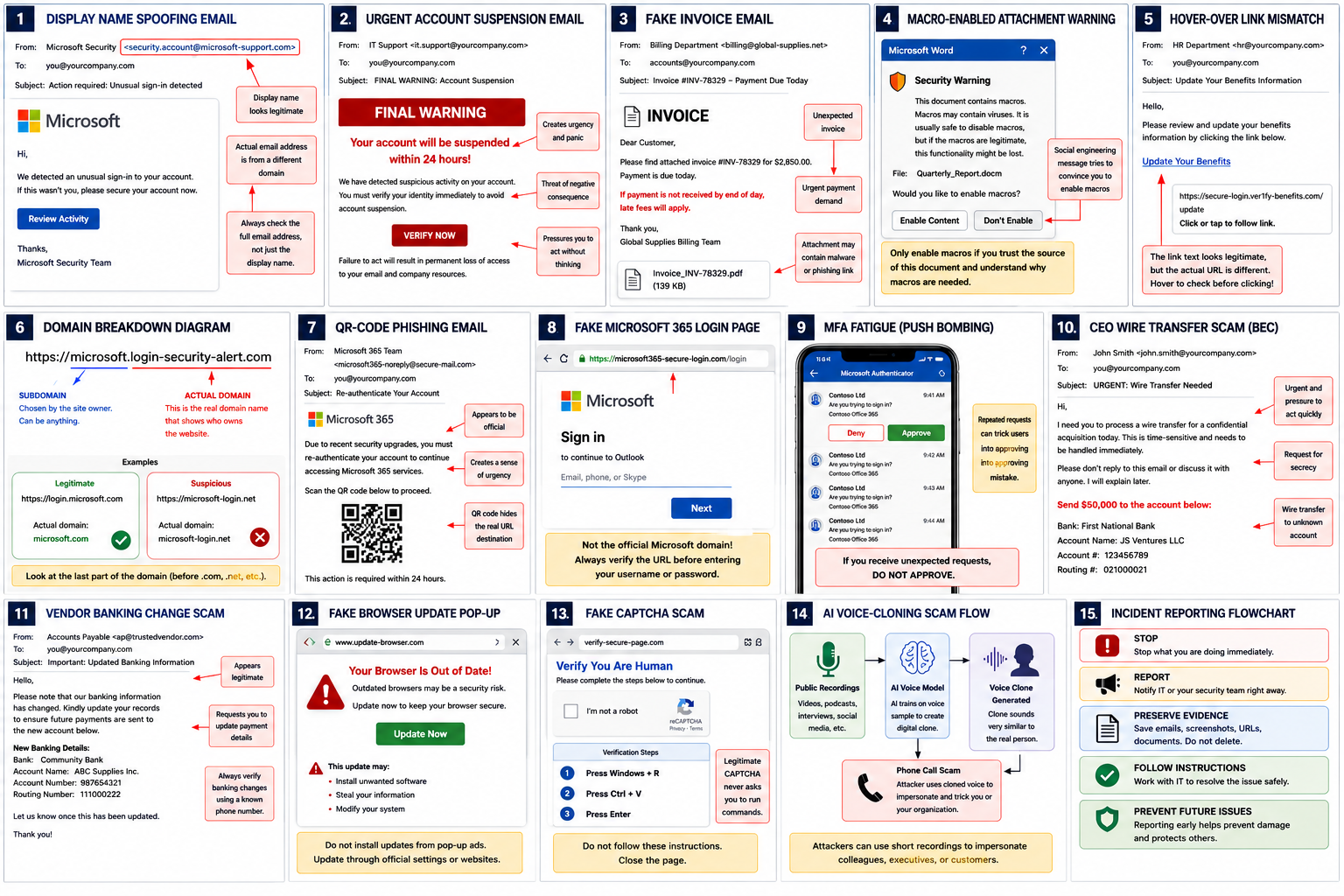
Why Cybersecurity Awareness Matters
Many organizations assume cybercriminals are only interested in large corporations, financial institutions, or government agencies.
In reality, organizations of every size are targeted.
Small and medium-sized businesses are often viewed as attractive targets because they may have fewer security resources while still possessing valuable information and financial assets.
Attackers commonly seek:
- Usernames and passwords
- Financial information
- Customer data
- Employee records
- Intellectual property
- Banking information
- Cloud service access
- Email accounts
- Remote access credentials
Even a single compromised account can provide an attacker with an opportunity to move deeper into an organization’s systems.
A successful compromise can result in:
- Financial losses
- Business disruption
- Data breaches
- Regulatory penalties
- Loss of customer trust
- Ransomware infections
- Identity theft
The good news is that many attacks can be prevented through awareness and careful decision-making.
Understanding Today’s Threat Landscape
Cyber threats have changed dramatically in recent years.
Many traditional warning signs still apply, but attackers have adopted new technologies and techniques that make fraudulent communications far more convincing than they once were.
AI-Generated Phishing Messages
Historically, phishing emails were often easy to identify because they contained spelling mistakes, grammatical errors, poor formatting, or awkward language.
Today, attackers increasingly use artificial intelligence tools to generate messages that are professionally written, grammatically correct, and tailored to specific organizations or individuals.
As a result:
Old Advice
“Look for spelling mistakes.”
Modern Advice
“Assume a well-written email can still be fraudulent.”
Grammar alone should never be used to determine whether a message is legitimate.
Business Email Compromise
Business Email Compromise (BEC) attacks have become one of the most financially damaging forms of cybercrime.
Unlike traditional phishing attacks, BEC attacks often contain:
- No malware
- No suspicious attachments
- No obvious malicious links
Instead, attackers impersonate trusted individuals and attempt to convince employees to perform actions on their behalf.
Examples include:
- Approving wire transfers
- Purchasing gift cards
- Updating banking information
- Sending confidential documents
- Changing payroll information
Because these requests often appear legitimate, users may not immediately recognize the attack.
QR-Code Phishing (“Quishing”)
QR codes have become increasingly popular in both business and consumer environments.
Attackers have noticed.
Rather than asking users to click a link directly, attackers increasingly embed QR codes into:
- Emails
- PDF documents
- Invoices
- Flyers
- Posters
- Letters
- Product packaging
When scanned, these QR codes often direct users to credential-harvesting websites that mimic legitimate services.
The danger is that users cannot hover over a QR code to inspect its destination before scanning.
For this reason, QR codes should be treated with the same caution as hyperlinks.
Voice Cloning and AI-Assisted Scams
Artificial intelligence has also enabled attackers to create convincing voice impersonations.
An attacker may obtain publicly available audio recordings from:
- Social media
- Corporate videos
- Webinars
- Podcasts
- Interviews
Using those recordings, the attacker may generate a synthetic voice that sounds remarkably similar to a manager, executive, or colleague.
Examples include:
“I need you to process a payment immediately.”
“I’m in a meeting right now and can’t talk. Just handle this for me.”
“IT is performing emergency maintenance. Please provide your verification code.”
Even if a voice sounds familiar, unusual requests should always be independently verified.
Email-Based Threats
Email remains one of the most common methods attackers use to gain access to organizations.
Almost every employee receives dozens or even hundreds of emails each week. Attackers rely on the fact that users become accustomed to processing messages quickly and may not carefully inspect each one.
Understanding how phishing works is one of the most important cybersecurity skills an employee can develop.
Phishing Emails
What Is Phishing?
Phishing is a form of fraud in which attackers impersonate a trusted organization, service, or individual to convince users to reveal information or perform actions that benefit the attacker.
The goal may be to:
- Steal passwords
- Capture banking information
- Install malware
- Gain remote access
- Collect personal information
- Commit financial fraud
Phishing emails often imitate:
- Microsoft
- Adobe
- Banks
- Shipping companies
- Payroll providers
- Vendors
- Internal departments
- Executives
Modern phishing campaigns frequently use authentic logos, branding, and language copied directly from legitimate communications.
As a result, appearance alone is not a reliable indicator of legitimacy.
Warning Sign #1: Suspicious Sender Addresses
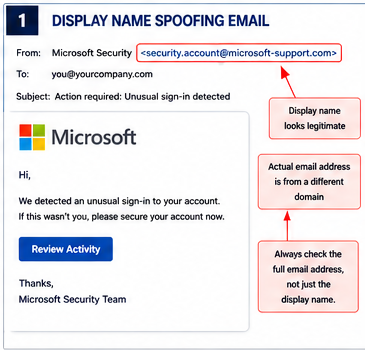
One of the most effective ways to identify phishing emails is to examine the sender’s actual email address.
Many email applications prominently display only the sender’s name.
For example:
Displayed Name: Microsoft Support
Actual Address: security-alerts@microsoft-verification-center.net
At first glance, the message appears to come from Microsoft.
A closer inspection reveals that it originates from an unrelated domain.
Common Tricks
Attackers frequently use domains such as:
microsoft-security.com
paypal-account-support.net
amazon-login-center.org
companyname-helpdesk.com
These domains may look convincing but are not associated with the legitimate organization.
Best Practice
Always verify the full sender address before interacting with links, attachments, or requests contained within a message.
Warning Sign #2: Urgency and Fear
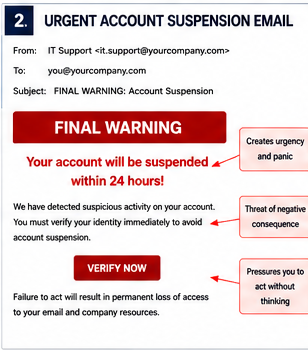
Attackers frequently attempt to create a sense of urgency.
The objective is simple: Prevent users from taking the time to think critically.
Common examples include:
Your account will be suspended within 24 hours.
Immediate action required.
Final warning.
Payment overdue.
Unauthorized login detected.
Verify your account now.
Legitimate organizations generally provide multiple methods of verification and rarely require immediate action without warning.
Whenever an email attempts to pressure you into acting quickly, slow down and evaluate the message carefully.
Warning Sign #3: Unexpected Attachments
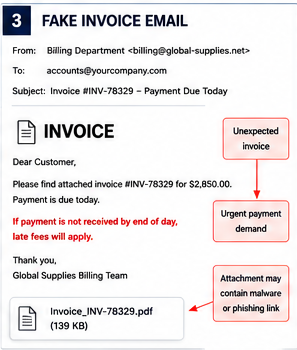
Attachments remain a popular method of delivering malware.
Common lures include:
- Invoices
- Receipts
- Purchase orders
- Tax documents
- Shipping notifications
- Shared files
- Contract revisions
An attacker may send a message claiming:
Please see the attached invoice.
or
Review the attached document and sign immediately.
The file may appear harmless but could contain malicious code designed to install malware or steal information.
Particular caution should be exercised when receiving files with extensions such as:
- .zip
- .exe
- .scr
- .iso
- .js
- .docm
- .xlsm
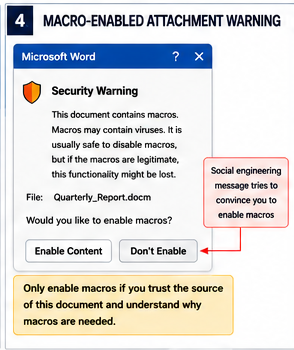
Macro-enabled Office documents remain a common delivery mechanism for malware despite years of awareness efforts. If a document requests that you enable macros or enable content, treat the request as suspicious unless you have independently verified the source.
Link-Based Attacks
While malicious attachments remain common, many modern attacks rely on links rather than files.
A single click can direct a user to a fraudulent website designed to steal credentials, install malware, or trick the user into providing sensitive information.
Because links are so common in everyday business communications, attackers invest considerable effort into making malicious links appear legitimate.
Warning Sign #4: Suspicious Links
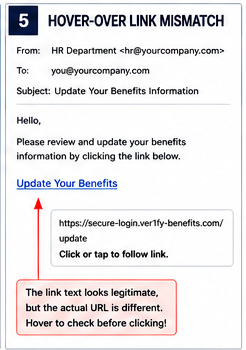
One of the simplest and most effective security habits is learning to inspect links before clicking them. Most email applications and web browsers allow users to see the destination of a hyperlink by hovering the mouse cursor over it.
Consider the following example:
Visible Link Text
https://microsoft.com/securityActual Destination
https://secure-account-verification-login.netThe visible text may appear legitimate while the actual destination is entirely different.
Attackers often rely on users clicking quickly without checking where the link actually leads.
Understanding Domains
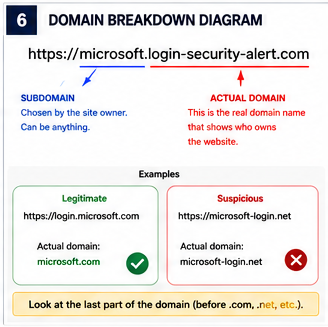
A common source of confusion is determining which part of a web address identifies the actual organization operating the website.
Consider this URL:
https://microsoft.login-security-alert.comMany users see the word “microsoft” and assume the site belongs to Microsoft.
However, the actual domain is:
login-security-alert.comEverything before that domain is merely a subdomain chosen by whoever owns the website.
Similarly:
Legitimate: https://security.microsoft.com
Suspicious: https://microsoft-security-login.net
Legitimate: https://accounts.google.com
Suspicious: https://google-login-verification.net
Learning to identify the true domain is one of the most valuable skills users can develop.
URL Shorteners
Attackers sometimes hide malicious destinations behind shortened links.
Examples include:
bit.ly
tinyurl.com
t.ly
shorturl.at
A shortened link is not necessarily malicious, but it prevents users from immediately seeing the destination.
When receiving shortened links unexpectedly, especially from unfamiliar senders, exercise caution.
QR Code Phishing (“Quishing”)
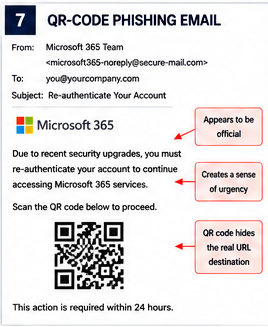
Historically, users were trained to hover over links before clicking them. QR codes bypass this safety habit. When a user scans a QR code with a mobile device, the destination often opens immediately.
Attackers increasingly embed QR codes in:
- Emails
- Invoices
- PDF documents
- Flyers
- Business correspondence
- Fake security alerts
The QR code may direct the user to:
- Fake Microsoft 365 login pages
- Fake Google login pages
- Fake banking websites
- Malware downloads
- Credential theft portals
Example Scenario
An employee receives an email claiming:
Due to recent security upgrades, please scan the QR code below to re-authenticate your account.
The QR code opens a page that appears identical to the organization’s Microsoft 365 login portal.
The employee enters their credentials.
The attacker captures the username and password and immediately attempts to access the account.
The employee may not realize anything is wrong until much later.
Safe QR Code Practices
Before scanning:
- Ask why a QR code is necessary.
- Verify the sender.
- Inspect the context carefully.
- Treat unsolicited QR codes with suspicion.
After scanning:
- Review the destination URL before proceeding.
- Confirm the website is legitimate.
- Never enter credentials unless you independently verified the destination.
Remember:
A QR code is simply another form of hyperlink.
Fake Login Pages
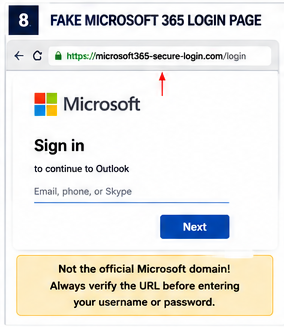
Credential theft remains one of the most successful attack methods because usernames and passwords provide direct access to business systems. Rather than attempting to crack passwords, attackers often create fake login pages that look nearly identical to legitimate websites.
How Fake Login Pages Work
A typical attack follows this pattern:
- The victim receives an email.
- The email contains a link.
- The link opens a fake login page.
- The victim enters credentials.
- The credentials are transmitted to the attacker.
- The attacker immediately attempts to access the real service.
The victim is often redirected to the legitimate website afterward, making the incident difficult to detect.
Common Targets
Attackers frequently imitate:
- Microsoft 365
- Google Workspace
- Dropbox
- Adobe
- Salesforce
- Banking portals
- Payroll systems
- VPN portals
- Cloud storage platforms
Because many users interact with these services daily, they may not stop to question whether a login request is legitimate.
Signs of a Fake Login Page
The URL Is Incorrect
Always examine the browser’s address bar.
Example:
Legitimate: https://login.microsoftonline.com
Suspicious: https://microsoftonline-login-security.net
Unexpected Login Requests
Be cautious if a website suddenly requests credentials when:
- You were already logged in.
- You were not attempting to access that service.
- The request follows an email link.
- The request follows a QR code scan.
Missing Security Indicators
Modern browsers often display warnings for suspicious websites.
Pay attention to:
- Security warnings
- Certificate errors
- Browser alerts
- Unusual page behavior
Do not ignore these warnings.
Credential Theft and Account Takeover
Once attackers obtain credentials, they often move quickly.
Potential actions include:
- Accessing email accounts
- Reading confidential communications
- Resetting passwords
- Sending phishing emails from legitimate accounts
- Accessing cloud storage
- Accessing business applications
Compromised accounts are especially dangerous because communications originating from legitimate accounts are far more likely to be trusted.
Why Multi-Factor Authentication Matters
Multi-factor authentication (MFA) provides an additional layer of protection beyond passwords.
Common factors include:
- Mobile authenticator applications
- Hardware security keys
- Text message verification codes
- Push notifications
Even if a password is stolen, MFA may prevent attackers from accessing the account.
However, MFA is not a complete solution.
Attackers have adapted.
MFA Fatigue Attacks
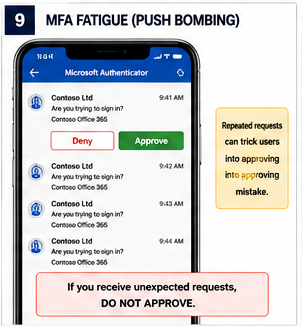
Many organizations use push-based authentication. Users receive a prompt asking whether they approve a login attempt. Attackers may repeatedly trigger these prompts hoping the user eventually approves one.
This technique is often called:
- MFA fatigue
- MFA bombing
- Push fatigue
Example:
An employee receives ten login approval requests within fifteen minutes.
Eventually, the employee becomes annoyed and approves one simply to stop the notifications.
The attacker immediately gains access.
How To Respond
If you receive an unexpected MFA request:
Do Not Approve It, even if it seems harmless.
Change Your Password; the request may indicate your credentials have already been compromised.
Notify IT Immediately. Unexpected MFA prompts should always be reported.
Business Email Compromise (BEC)
Business Email Compromise has become one of the most financially damaging forms of cybercrime worldwide.
Unlike traditional phishing attacks, BEC attacks often rely entirely on social engineering.
No malware may be involved.
No malicious attachment may be present.
The email itself is the attack.
Executive Impersonation
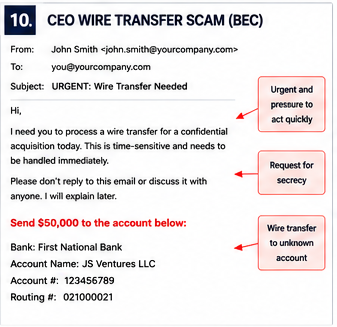
Attackers frequently impersonate:
- CEOs
- Presidents
- Directors
- Managers
- Department heads
The goal is to leverage authority.
Employees may hesitate to question instructions that appear to come from senior leadership.
Examples include:
I need a wire transfer completed today.
Purchase gift cards and send me the codes.
I need this payment processed immediately.
Send me the employee payroll records.
Many organizations have lost significant sums of money through these schemes.
Vendor Impersonation
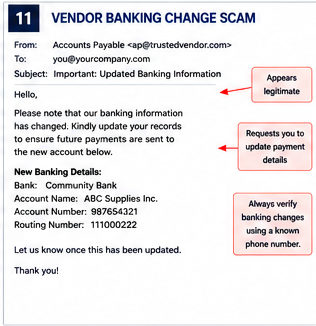
Attackers may also impersonate suppliers or service providers.
Common examples include:
Our banking information has changed.
Please update our payment details.
Future invoices should be paid to this account.
If the organization updates payment information without verification, funds may be sent directly to the attacker.
Best Practices for Financial Requests
Never rely solely on email.
Always verify:
- Banking changes
- Wire transfer requests
- Payment instructions
- Vendor account changes
Verification should occur using:
- A known phone number
- An existing contact
- A separate communication channel
Never use contact information supplied only within the email itself.
Malicious Attachments and File-Based Attacks
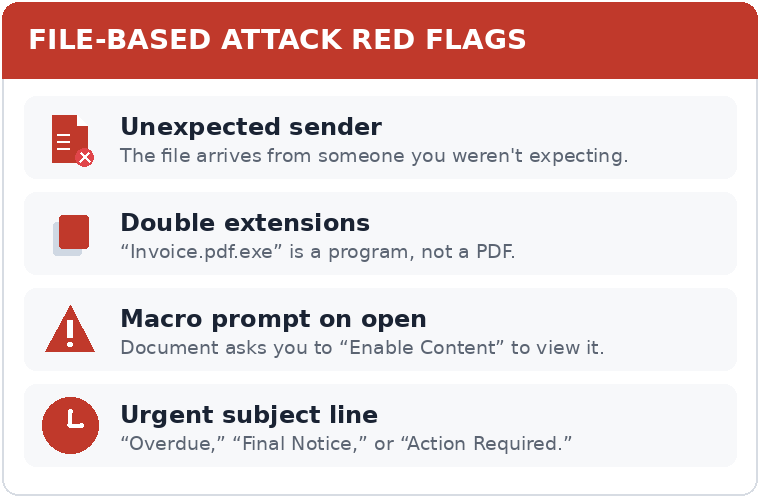
Despite the growing popularity of web-based attacks, malicious attachments remain one of the most common ways attackers gain access to computers and networks.
Attackers understand that employees routinely exchange files with customers, suppliers, coworkers, and business partners. By disguising malware as a legitimate document, they hope users will open the file without questioning its authenticity.
Unlike many movies and television shows, malware infections rarely begin with a dramatic warning or obvious signs of compromise. In many cases, a user opens a file, nothing unusual appears to happen, and the attacker quietly gains access in the background.
Common Attachment Lures
Attackers often disguise malicious files as:
- Invoices
- Receipts
- Purchase orders
- Tax documents
- Contracts
- Shipping notices
- Statements
- Shared documents
- Scanned forms
- Voicemails
Common subject lines include:
Invoice Attached
Updated Payment Information
Outstanding Balance Notice
Contract Revision
Secure Document Shared With You
New Voicemail Message
The goal is to create a sense of familiarity and routine.
Dangerous File Types
While any file should be treated cautiously if it arrives unexpectedly, certain file types deserve special attention.
Executable Files
Examples:
.exe
.scr
.msi
.bat
.cmd
These files can directly execute programs on a computer.
In most business environments, unexpected executable files should never be opened.
Compressed Archives
Examples:
.zip
.rar
.7z
.iso
Archives are commonly used to hide malicious content from email filters and security tools.
A seemingly harmless ZIP file may contain malware disguised as a document.
HTML Attachments
Examples:
.html
.htm
Modern phishing campaigns increasingly use HTML attachments.
When opened, these files often display a realistic login page directly within the user’s browser.
The user may believe they are viewing a legitimate document when they are actually entering credentials into a phishing site.
Macro-Based Attacks
Macro-enabled documents have been used in cyberattacks for many years because they remain surprisingly effective.
Common file types include:
.docm
.xlsm
These files can contain embedded code.
A typical attack may display a message such as:
This document was created in a newer version of Microsoft Office.
Click “Enable Content” to view.
or
Macros must be enabled to display the document correctly.
Once enabled, malicious code may execute automatically.
Best Practice
Never enable macros unless:
- The document was expected.
- The sender has been independently verified.
- You understand why macros are necessary.
When in doubt, contact the sender using a known phone number or separate communication method.
Double Extension Tricks
Attackers sometimes attempt to disguise file types using multiple extensions.
Examples:
Invoice.pdf.exe
Report.docx.exe
Statement.pdf.scr
Depending on system settings, users may only see:
Invoice.pdfmaking the file appear harmless.
Whenever possible, configure systems to display full file extensions.
Malvertising and Fake Browser Updates
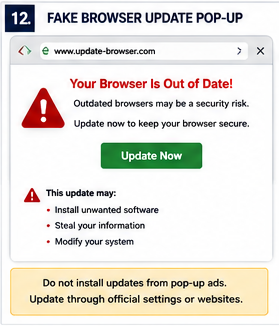
Many users assume that if they are visiting a legitimate website, everything displayed on that website must also be legitimate. Unfortunately, this is not always true.
Attackers sometimes place malicious advertisements on otherwise legitimate websites. This practice is commonly known as malvertising.
In some cases, attackers compromise advertising networks themselves, causing malicious advertisements to appear across many websites simultaneously.
What Malvertising Looks Like
Examples include:
- Fake antivirus warnings
- Fake software updates
- Fake browser updates
- Fake virus alerts
- Fake prize notifications
- Fake technical support messages
These advertisements often mimic trusted organizations and software vendors.
Example
A user visits a news website.
Suddenly a pop-up appears:
Your browser is out of date.
Immediate security update required.
Click here to update now.
The message may look legitimate and include familiar branding.
In reality, the “update” may install malware.
How Legitimate Software Updates Work
Organizations typically manage updates through:
- IT departments
- Device management systems
- Official vendor websites
- Built-in software update mechanisms
Legitimate updates rarely arrive through random advertisements.
If you receive an unexpected update prompt while browsing:
Do Not Click It. Instead:
- Close the browser tab.
- Open the software normally.
- Check for updates through official menus.
- Contact IT if uncertain.
Fake CAPTCHA and Human Verification Scams
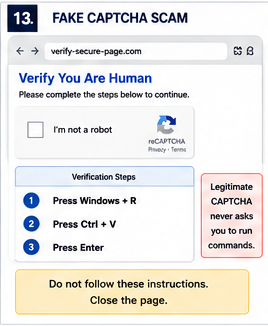
One of the fastest-growing attack techniques in recent years involves fake CAPTCHA pages. Most users are familiar with CAPTCHA challenges designed to verify that a visitor is human. Attackers exploit this familiarity.
How the Scam Works
The victim is directed to a webpage that appears to perform a routine verification check.
The page displays instructions such as:
Confirm you are not a robot.
Complete verification.
Continue to secure content.
Instead of displaying a normal CAPTCHA, the page instructs the user to perform unusual actions.
Examples include:
- Press Windows + R
- Press Ctrl + V
- Press Enter
The victim may not realize that malicious commands have been silently copied to the clipboard.
By following the instructions, the user executes malware directly on their computer.
Why This Works
Many users have been conditioned to trust CAPTCHA systems.
Attackers exploit that trust by disguising malicious instructions as a routine verification process.
Warning Signs
Legitimate CAPTCHA systems do not normally ask users to:
- Open Run dialogs
- Paste commands
- Open PowerShell
- Launch Command Prompt
- Download software
- Disable security tools
Any website requesting these actions should be treated as highly suspicious.
Voice Phishing (Vishing)
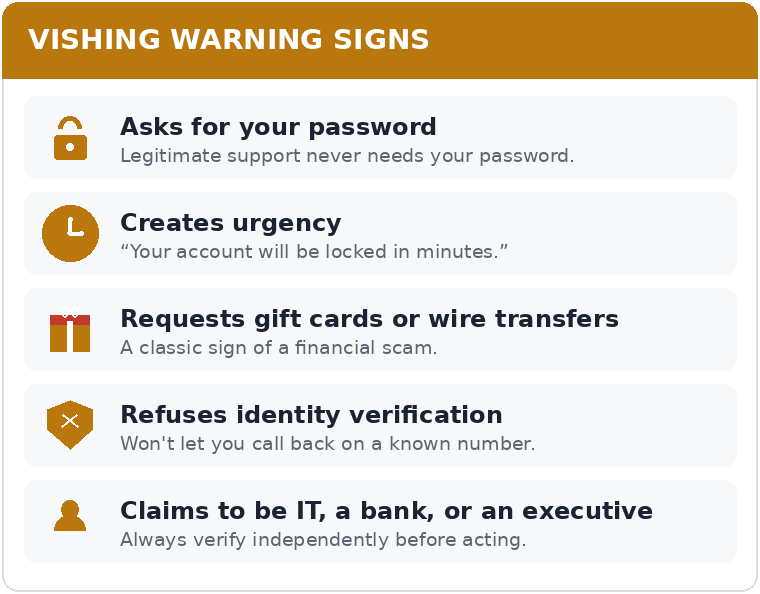
Email is not the only channel attackers use.
Voice phishing, often called vishing, uses telephone calls, voicemail messages, and voice communications to deceive victims.
Because many people associate telephone calls with legitimacy, these attacks can be highly effective.
Common Vishing Scenarios
Technical Support Scam
The caller claims to be:
- IT support
- Microsoft support
- Security operations
- Help desk personnel
Examples:
We detected malware on your computer.
Your account has been compromised.
We need your password to verify ownership.
Legitimate support personnel should never ask for your password.
Banking Scam
The caller claims:
Suspicious transactions have been detected.
Your account has been frozen.
Immediate verification is required.
The attacker attempts to collect:
- Account numbers
- Verification codes
- Passwords
- Personal information
Executive Impersonation
The attacker claims to be:
- A manager
- A director
- An executive
The caller may request:
- Urgent payments
- Sensitive information
- Password resets
- Confidential documents
Always verify unusual requests independently.
AI Voice Cloning
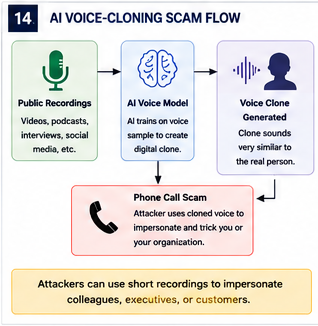
Recent advances in artificial intelligence have made voice impersonation significantly more convincing. Attackers can sometimes create realistic voice clones using only short publicly available recordings.
Sources may include:
- YouTube videos
- Webinars
- Podcasts
- Conference presentations
- Social media content
The resulting audio may sound remarkably similar to a real person.
Why Voice Recognition Is No Longer Sufficient
Historically, employees could often verify identity by recognizing a caller’s voice.
Today, that approach is increasingly unreliable.
A familiar-sounding voice should not be considered proof of identity.
Instead, verification should rely on established business processes.
Verification Techniques
When receiving unusual requests:
- Call back using a known phone number.
- Verify through another employee.
- Use approved communication channels.
- Follow established approval processes.
Never bypass normal procedures simply because a request appears urgent.
Safe Browsing Practices
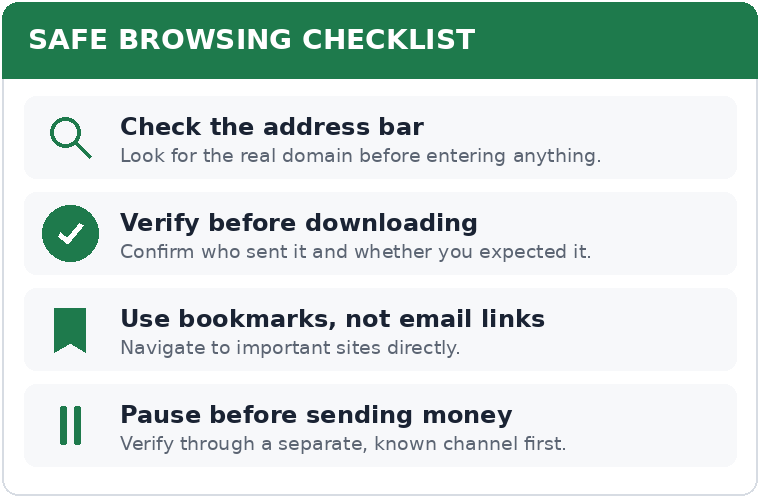
Most users spend a significant portion of their workday interacting with websites, cloud applications, and online services.
Safe browsing habits can dramatically reduce risk.
Before Clicking Any Link
Ask yourself:
- Was I expecting this?
- Do I trust the sender?
- Does the destination make sense?
- Am I being pressured to act quickly?
If anything feels unusual, investigate further.
Before Downloading Any File
Verify:
- Who sent it
- Why it was sent
- Whether it was expected
- Whether the file type is appropriate
Unexpected files deserve additional scrutiny.
Before Entering Credentials
Always confirm:
- The website address is correct.
- The login request is expected.
- You arrived through a trusted route.
Whenever possible, navigate directly to important services using bookmarks or known URLs rather than email links.
Before Sending Money or Sensitive Information
Verify the request using a separate communication channel.
This simple step prevents many forms of fraud.
Never assume an email is legitimate simply because it appears to come from someone you know.
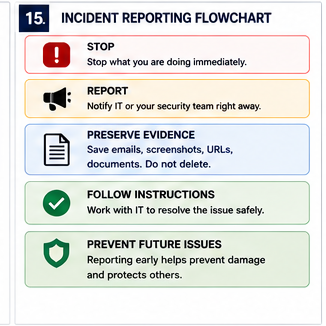
What To Do If You Think You’ve Been Compromised
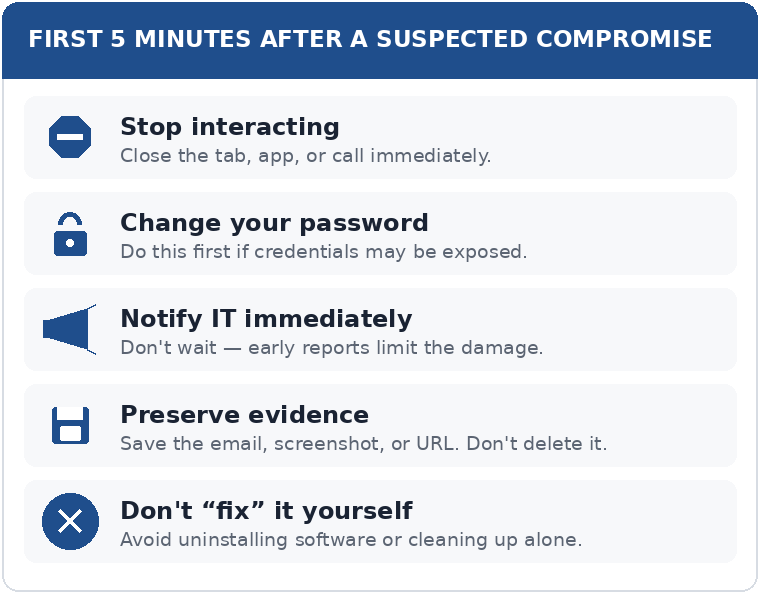
One of the most damaging misconceptions in cybersecurity is the belief that reporting a mistake will result in punishment or embarrassment.
In reality, most organizations would much rather know about a potential security incident immediately than discover it days or weeks later after significant damage has occurred.
The sooner a suspicious event is reported, the greater the likelihood that it can be contained before serious harm occurs.
If you think you may have interacted with a malicious email, website, attachment, or phone call, report it as soon as possible.
Even if you are not certain an attack occurred, it is better to report a false alarm than remain silent.
If You Clicked a Suspicious Link
Clicking a malicious link does not always result in a compromise.
Many attacks require additional actions, such as entering credentials or downloading malware.
However, you should still treat the situation seriously.
Recommended Actions
- Stop interacting with the website.
- Close the browser tab or window.
- Do not enter any information.
- Report the incident according to your organization’s procedures.
- Monitor for unusual account activity.
If you entered information after clicking the link, follow the guidance in the next section.
If You Entered Your Password
If you entered your password into a suspicious website:
Act Immediately
- Change your password as soon as possible.
- Change passwords for any other accounts using the same password.
- Notify IT or your security team.
- Review account activity if possible.
- Verify that multi-factor authentication remains enabled.
Time is critical.
Many attackers attempt to use stolen credentials within minutes.
If You Approved an Unexpected MFA Prompt
Unexpected MFA prompts often indicate that someone already possesses your password and is attempting to access your account.
Do Not Ignore It
If you receive a login approval request that you did not initiate:
- Deny the request.
- Change your password immediately.
- Notify IT or security personnel.
- Review recent account activity.
Repeated MFA prompts may indicate an ongoing attack.
If You Opened a Suspicious Attachment
Not every suspicious attachment contains malware, but all unexpected attachments should be treated cautiously.
If you opened a suspicious file:
Report It Immediately
Even if nothing appears to happen.
Many malware infections produce no obvious signs.
Your device may appear completely normal while malicious activity occurs in the background.
Security personnel may need to:
- Review logs
- Scan the system
- Isolate the device
- Reset credentials
- Investigate further
If You Downloaded Software Unexpectedly
If a suspicious website convinced you to download software:
Stop Using the Application
Do not launch it again.
Notify IT or security personnel immediately.
Attempting to uninstall or “fix” the problem yourself may make investigation more difficult.
If You Sent Money or Sensitive Information
Financial fraud incidents require immediate attention.
Examples include:
- Wire transfers
- Gift card purchases
- Banking information
- Customer records
- Employee information
- Tax documents
The sooner the issue is reported, the greater the chance that corrective actions can be taken.
Do not delay reporting because of embarrassment or uncertainty.
If a Device Appears Infected
Potential warning signs include:
- Unusual pop-ups
- Unexpected software installations
- Browser redirects
- Significant performance degradation
- Unknown applications
- Unexplained account activity
- Security software warnings
While these symptoms do not always indicate malware, they should be reported and investigated.
Incident Reporting Best Practices
Every organization should establish a clear reporting process.
Employees should know:
- Who to contact
- How to contact them
- When to report incidents
- What information to provide
The reporting process should be simple and accessible.
Complicated reporting procedures discourage timely reporting.
Information to Provide
When reporting a suspected incident, include as much information as possible:
- Date and time
- Sender address
- Subject line
- Website address
- Description of events
- Screenshots (if available)
- Actions performed
Examples:
- Clicked a link
- Opened an attachment
- Entered credentials
- Approved an MFA request
- Spoke with a suspicious caller
The more information provided, the easier it is for security personnel to investigate.
Preserve Evidence
When possible:
Do:
- Save screenshots
- Save emails
- Record URLs
- Note dates and times
Do Not:
- Delete evidence immediately
- Attempt your own investigation
- Forward suspicious files to coworkers
- Continue interacting with the suspicious content
Preserving evidence can significantly assist incident response efforts.
Cybersecurity Red Flags Quick Reference Sheet
The following warning signs should always prompt additional scrutiny.
| Email Red Flags □ Unexpected message □ Unknown sender □ Unusual sender address □ Urgent language □ Threats or deadlines □ Requests for passwords □ Requests for MFA codes □ Unexpected attachments □ Unusual payment requests □ Requests for confidential information □ Poorly matched branding □ Suspicious links | Website Red Flags □ Strange web addresses □ Unexpected login requests □ Browser security warnings □ Requests for excessive information □ Unexpected downloads □ Fake update prompts □ Requests to disable security software □ Requests to run commands □ Numerous pop-ups |
| Phone Call Red Flags □ Requests for passwords □ Requests for MFA codes □ High-pressure tactics □ Refusal to verify identity □ Demands for secrecy □ Requests for gift cards □ Requests for wire transfers □ Requests to bypass procedures | Financial Fraud Red Flags □ Banking information changes □ Last-minute payment requests □ Urgent wire transfer requests □ Unusual payment destinations □ Requests to ignore normal procedures □ Executive requests made outside normal channels |
Building Good Security Habits
Cybersecurity is not about becoming an expert in technology. It is about developing habits that reduce risk. The most effective employees are not necessarily the most technical. They are often the individuals who consistently:
- Slow down
- Ask questions
- Verify information
- Follow established procedures
- Report suspicious activity
A few extra moments of caution can prevent significant financial and operational damage.
The Importance of Verification
One of the most effective defenses against social engineering is independent verification.
Whenever a request involves:
- Money
- Credentials
- Sensitive information
- Security settings
- Account access
Pause and verify. Verification should occur using a trusted method that is independent of the original request.
For example:
If an email requests a wire transfer, call the requester using a known phone number.
If a voicemail requests credentials, contact the individual directly using a trusted directory.
If a QR code requests authentication, navigate manually to the service instead.
Verification is often the difference between a successful attack and a prevented one.
Recommended Training Videos
The following videos provide excellent introductions to cybersecurity awareness topics and are suitable for non-technical audiences.
General Phishing Awareness
CISA – Recognize and Report Phishing
Produced by the U.S. Cybersecurity and Infrastructure Security Agency (CISA), this short video explains the fundamentals of phishing and how to recognize suspicious communications.
Recommended for:
- All employees
- New hires
- Annual refresher training
Google – Phishing Scams and How to Spot Them
Provides practical examples of modern phishing attacks and credential theft techniques.
Recommended for:
- General office staff
- Remote workers
- Cloud application users
KnowBe4 – The Inside Man Series
A well-known cybersecurity awareness training series that presents realistic attack scenarios in a relatable workplace environment.
Recommended for:
- Organization-wide awareness programs
- Security awareness discussions
- Manager-led training sessions
Business Email Compromise Awareness
FBI Public Service Announcements on Business Email Compromise
Provides real-world examples of financial fraud and executive impersonation attacks.
Recommended for:
- Finance teams
- Purchasing departments
- Managers
- Executives
Safe Browsing and Web Security
Stay Safe Online Educational Videos
Produced by cybersecurity awareness organizations and focused on practical, everyday security habits.
Recommended for:
- General audiences
- Annual awareness campaigns
Additional Resources
Employees interested in learning more about cybersecurity can consult:
- Cybersecurity and Infrastructure Security Agency (CISA)
- National Cyber Security Centre (NCSC)
- Canadian Centre for Cyber Security
- Stay Safe Online
These organizations regularly publish guidance on emerging threats, scams, and security best practices.
Conclusion
Cybercriminals succeed by exploiting trust, routine, distraction, and urgency. Fortunately, the same techniques used repeatedly by attackers can also be recognized and resisted.
Remember these key principles:
Stop. Pause before acting.
Look. Examine emails, links, attachments, websites, and requests carefully.
Verify. Confirm unusual requests using trusted communication channels.
Report. Report suspicious activity promptly, even if you are uncertain.
Cybersecurity is not solely the responsibility of IT departments or security teams. Every employee plays a role in protecting organizational systems, information, customers, and colleagues.
A moment of caution today can prevent a significant security incident tomorrow.